EXPLANATION OF Groups After Groups
|
DESCRIPTION
|
The “Groups After Groups” analysis focuses on tracking how entire groups of numbers tend to follow other groups in lottery draws. For example, if a number from Group 0 (numbers ending with 0, like 10, 20, 30) was drawn, this method analyzes the occurrence of numbers from Group 1, Group 2, etc. immediately after the appearance of a number from Group 0.
This method extends the single-number sequential analysis to visual or digit-based groups, enabling players to see correlations between number sets rather than individual numbers. By examining group-to-group sequences, you can detect tendencies or patterns that help inform strategic ticket generation and wheel system configurations.
This approach is particularly useful because lottery outcomes often have group-level distribution biases. Even if individual numbers seem random, group-level sequences may reveal patterns over multiple draws.
|
NUMBERS CHOOSING ADVICE
|
When selecting numbers or designing a wheel system, consider the historical frequency of groups appearing after other groups.
Observe which groups tend to follow a specific group, like how often Group 1 appears after Group 0.
Use this method to adjust tickets or wheel combinations to favor sequences that historically occur more often.
Combine this analysis with other filters like odd/even, low/high blocks, and line distribution to improve overall ticket selection strategy.
Avoid over-relying on a single group sequence; consider the spread across multiple groups for balanced wheel system generation.
|
|
Go To: Explanation, Visual Analysis
FILTERING NUMBERS WITH FILTER Groups After Groups
|
WHAT THIS FILTER IS FOR
|
This filter can be used to filter out lottery numbers, wheel system combinations, or generated tickets.
You can filter those numbers by Groups After Groups
|
HOW TO ADD FILTER
|
On the Filters page select the Add Filter tab, choose Groups After Groups main filters from the list on the left side of page.
Select Groups After Groups particular filter from the list on the right side of page.
Click the Add Filter button located on the toolbar. Selected filter will be added to your Game Filters list.
If you want to add more than one filter, select more filters using CTRL+A keys to select them all or hold CTRL key and select filters with mouse
For more detailed information about filters page please see Filters Interface topic
|
HOW TO SET FILTER PROPERTIES
|
After adding the filter, you can go to the Game Filters page in the same Filters window to edit the filter properties.
The added filter will be located under the Groups After Groups group of all filters, with its value in the Property cell set to 1 as
Use
If selected, the filter will be used to apply filtering.
Action
Sets the filter action applied by the filter to determine the final outcome when filter's condition is met.
You can choose to accept or reject numbers
Select your preferred option from the drop-down menu in the Action column.
- When you choose Accept action then:
- When you choose Reject action then:
Property
Sets the filter for analyzed numerical values; you can configure it here:
This filter does not have any property to configure; instead, it only displays:
You can adjust the filter property here to select a different number for analysis by choosing another option from the drop-down combo box.
You can modify the filter property to choose a different number for analysis by either using the spin edit control or typing the number directly into the property cell.
Number Main Type
Sets the filter for Number Main Type, allowing you to filter numbers by their type.
If the main type is set to ALL, then all numbers are included regardless of their type.
Please refer to the Filters - Types of Numbers topic for more information about filtering numbers by their type.
You can select the type of number you want to filter by from the drop-down menu.
Number Subtype
Displays or sets the filter for Number Subtype, allowing you to filter numbers by their type.
If the sub type is set to ALL, then all numbers are included regardless of their sub type, only those set in the Number Main Type property are included.
Essentially, you can filter numbers by their occurrences in various types of number configurations.
You can select the type of number you want to filter by from the dropdown menu.
Value
Sets the condition value for the filter to be satisfied.
You can set here for example:
Range
Displays or sets the filter's condition range value, used only when the filter's condition is set to a Range of Values.
Condition
Filter conditions you can apply to meet the filter Value option criteria .
You can select a filter condition from drop-down list combo box one of the following conditions:
Any Number
When you choose Reject action then:
Tickets or wheel system combinations containing any number from the target group appearing after a number from the source group will be rejected.
When you choose Accept action then:
Tickets or wheel system combinations containing any number from the target group appearing after a number from the source group will be accepted.
Equals Filter Value
When you choose Reject action then:
Tickets or wheel system combinations where the count of numbers from the target group occurring immediately after the source group equals the Value cell will be excluded.
When you choose Accept action then:
Tickets or wheel system combinations will include only selections where the count of numbers from the target group occurring immediately after the source group equals the Value cell.
Higher than Filter Value
When you choose Reject action then:
Tickets or wheel system combinations where the count of numbers from the target group occurring immediately after the source group exceeds the Value cell will be rejected.
When you choose Accept action then:
Tickets or wheel system combinations will include only selections where the count of numbers from the target group occurring immediately after the source group exceeds the Value cell.
Lower than Filter Value
When you choose Reject action then:
Tickets or wheel system combinations where the count of numbers from the target group occurring immediately after the source group is below the Value cell will be rejected.
When you choose Accept action then:
Tickets or wheel system combinations will include only selections where the count of numbers from the target group occurring immediately after the source group is below the Value cell.
Range of Values
When you choose Reject action then:
Tickets or wheel system combinations where the count of numbers from the target group occurring immediately after the source group falls within the Range cell will be rejected.
When you choose Accept action then:
Tickets or wheel system combinations will include only selections where the count of numbers from the target group occurring immediately after the source group falls within the Range cell.
|
EXAMPLE
|
Here is the example of setting up filter to filter wheel system or numbers when generating tickets:
For example in a game 6/49 and for flexible and rather fail safe filtering please do as following
Set the Action property to Reject
Set the Number Main Type and Number Subtype to All
Under Filter Condition Options > Value set the value to
Under Filter Condition Options > Condition choose More Than Filter Value condition
|
|
Go To: Explanation, Filtering
VISUAL ANALYSIS OF Groups After Groups
|
|
DIAGRAMS INTERPRETATION
|
The first diagram shown at the top of screen illustrates the general occurrence of Groups After Groups numbers.

If numbers are not drawn as contact numbers, the diagram will display a point in row 0. If they are drawn as contact numbers, the diagram will show a point in the row corresponding to the number of contact numbers drawn.
The upcoming diagrams will examine numbers drawn as the main type and their combinations with other types.
|
Please read also the Analysis Base topic to learn how to recognize the new number type after a new draw.
|
Go To: Explanation, Filtering, Visual Analysis
This method analyzes which groups are drawn after the group from previous draw.
Unlike in other analysis, here the whole groups of numbers are analyzed at once, not just single numbers.
For example, we have the game numbers from lotto game 6 out 49: 22 32 36 41 48 (in red)
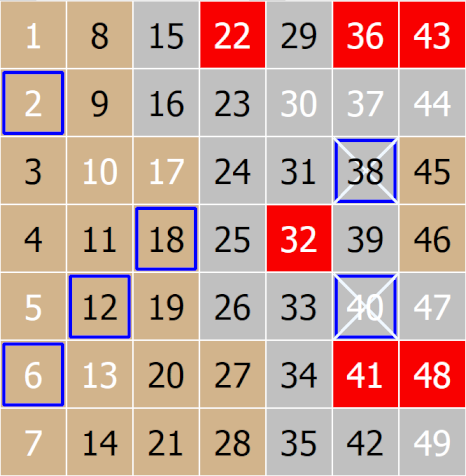
The last game numbers are the base numbers for our analysis, so to find out which tickets numbers follows after the number 4 select from menu
Following Numbers / Numbers After Numbers / Number 4.
So here below is a sample image of Game Layout View with new game draw numbers put over the ticket (in blue borders)
Now we can see that after number 4, numbers 4 19 21 23 32 38 were drawn.
Please note that this method is analyzing all ticket numbers and analysis screen will show all numbers like from 1 to 49 for example.
Here is an example diagram
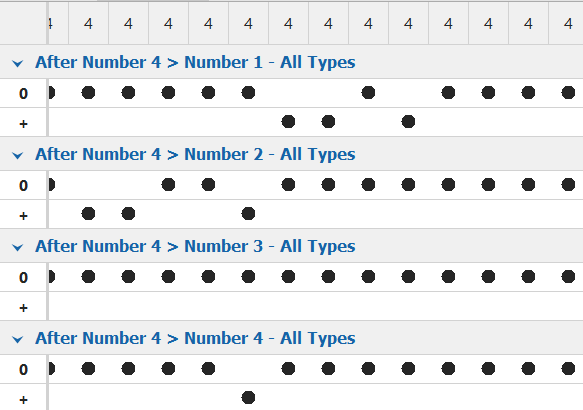
The first diagram will show if number 1 was drawn:
If the previous number was 4 and number 1 was NOT drawn then diagram will show a point in row 0
If number 1 was drawn then diagram will show a point in row +.
The next diagram will show if number 2 was drawn:
If the previous number was 4 and number 2 was NOT drawn then diagram will show a point in row 0
If number 2 was drawn then diagram will show a point in row +.
Next diagrams will show whether next ticket numbers were draw or not.
In our example the primary type of number is off. All Types means the numbers are analyzed as is,
The Number Main Types are:
Contact, Outside, Hot, Cold, Odd, Even, Connected, Unconnected, Disconnected
The Visual Analyzer evaluates numbers in all possible combinations.
Each Number Main Type can appear individually or in combination with others.
In this analysis method the Number Type Switch is enabled,
When you change the primary number type using the Number Type Switch, diagrams display the analysis of the examined numbers and how they are represented as the primary number type in combination with other types.
Example when primary number is the Outside type:
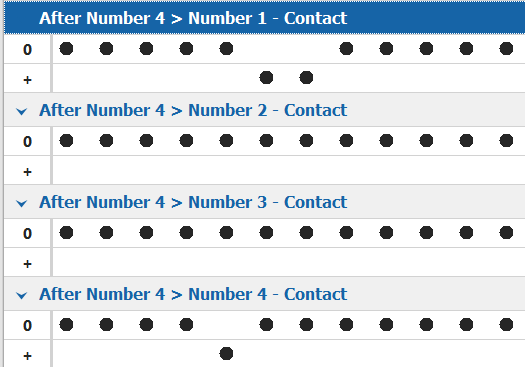 etc. etc.
The next diagrams will show analyzes of numbers that were drawn as Contact type of numbers.
Please see also Analysis Screen topic for more info on how to interpret diagrams.
Shows if a particular group of similar numbers is drawn after previously group
How to analyze groups:
For example we have the following game numbers for a classic lotto game 6 out 49
6 15 21 24 26 39
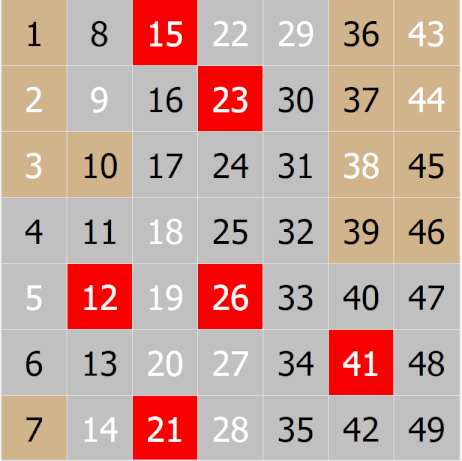
In these numbers we have numbers from groups 1 4 5 6 9
The last game numbers are the base number for our analysis, so to find out which groups follows after the group 6 select from menu
Following Numbers / Similar Numbers Groups / Numbers With 6
Here below are sample 2 diagrams that shows analysis how all groups of similar numbers occurs after our sample group 6.
First diagram is for group 0, second for group 2 and there will be diagrams for the rest of groups
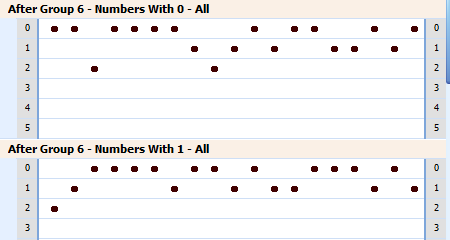
If any number was drawn from analyzed group then diagram will print a point in row 0
If any number is drawn from analyzed group then diagram will print a point in row indicating how many numbers were drawn.
Example
Here we have a sample of new game numbers; 2 8 11 17 42 47, they are put on the Game Layout View and represented as blue borders.
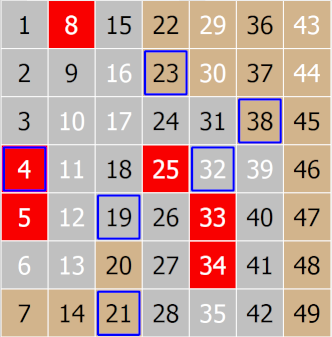
Because previously there was drawn some numbers form group 6 (6 26) we go and will analyze what groups occurred in a new lottery draw after that.
In new lottery draw we have numbers drawn form groups 1 2 7 8
Numbers 2 and 42 coming form group 2
Number 11 coming form group 1
Number 8 coming form group 8
Numbers 17 and 47 coming form group 7
So, the first diagram After Group 6 - Numbers With 0 will print a point in row 0 because NO number from group 0 was drawn
That is it, if ANY number from group 0 (10 20 30 40) was not drawn, after previously drawn numbers from group 6 then diagram will show zero.
The second diagram After Group 6 - Numbers With 1 will print a point in row indicating count of numbers from group 1, In our sample it will print a point in row 1 because there was one number 11 drawn from group 1 (1 11 21 31 41)
In that way you can see all groups how they follows after particular group from previous lottery draw.
Additionally all these diagrams can also show how those types of numbers are drawn as contact, outside, hot or cold numbers.
To see these analysis use the Number Type Switch
|