On the Options Page you can set following options
Analyze
Hide unnecessary elements in the menu
If this option is selected, you can hide links to some analyzes that are unnecessary in the menu.
For example, in menu In Contact - Horizontal Lines the menu will show only links to those lines which can be analyzed.
If option is not selected then full menu is shown.
Show only relevant diagrams
Selecting this option allows you to conceal all non-essential diagrams during game analysis.
For instance, if you are evaluating certain numbers or sequences and find no numbers requiring analysis, the corresponding diagram will remain hidden.
This feature is particularly beneficial as it facilitates quicker navigation through diagrams.
Occasionally, the screen may appear empty if no pertinent numbers are detected.
Please note that this option is linked to the most recent number draw in a game, and the software utilizes the numbers from the last game as a foundation for analysis. Further information is available at the provided topic here.
Lock diagram tips to the latest numbers
By default, clicking any part of the analysis screen diagram with the mouse displays the numbers or other tips of the selected drawing in a Game Layout View.
When this option is selected, you can lock the Game Layout View to show only the last game's numbers, preventing any changes to the Game Layout View.
This feature can be particularly useful when analyzing games for future draws and you do not want to see tips from past numbers due to an accidental click on another diagram's column.
View
Tools Pane Docking Position
You can move the tools pane to the left or right side of the window by selecting the Left or Right option.
Fill Option
Selecting the Fill option expands the tools pane to occupy the entire window.
This is useful when you want to use a tool in full feature mode. You can also achieve this by clicking the Full button at the top-right corner of the tools pane when the pane’s page is visible.
If the Fill option is set, the tools pane will automatically fill the entire window the next time you open it.
Apply last workspace at startup
This option, if checked, will allow the previously used workspace to be opened and applied the next time you open this feature window
Show layout tips on a Game Layout View
If this option is selected, you can see on the main Game Layout View the numbers that are in the selected diagram.
for example, if you have analyzed something, then you can click on the diagram and see the numbers.
When you click on a diagram that says Contact then you will see all the contact numbers for currently selected lottery draw.
Once you click on a diagram you can see Contact numbers from any other lottery draw,just select lottery draw on analysis screen, click on analysis screen column, or use left/right keyboard arrows to move between lottery drawings.
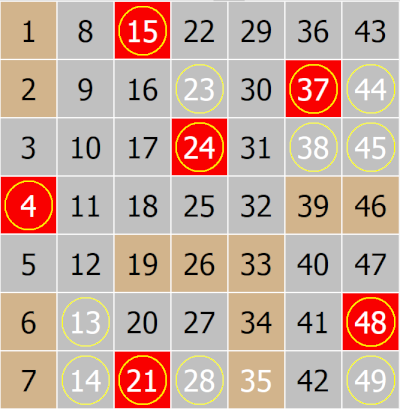
All numbers shown on Game Layout View, are circled.
For example, after you click on a diagram which shows analysis of Contact & Hot numbers together, then on the Game Layout View all those numbers are circled:
Show drawn numbers tips on a Game Layout View
This option requires that the Ticked View window will show numbers in mode 2X
If you want to visually see on the main Game Layout View which numbers were drawn and are included in individual drawing analyses, select this option.
For example, if you have analyzed something, then you can click on the diagram column (or any black dot) to see the numbers.
After you click on a diagram dot and diagram title says Contact then you will see selected only contact numbers .
For example, here is a small part of a diagram (with title Contact), when you have clicked a column 4 (fourth past lottery draw), and the black dot is in the row 2,
this indicates that in the past fourth lottery drawing, 2 numbers were drawn as Contact numbers.
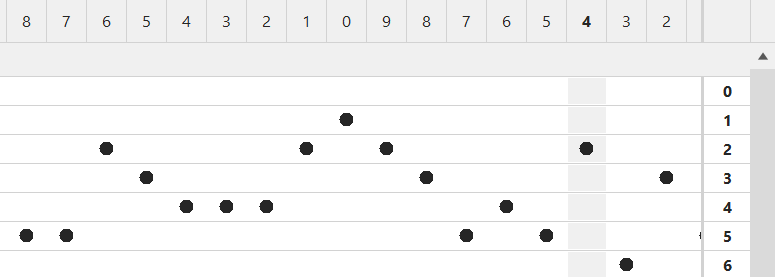
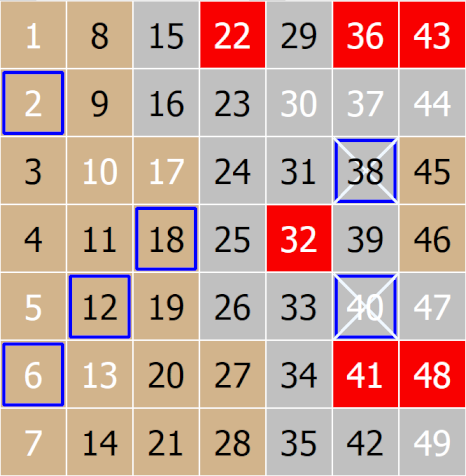
And you will see those 2 numbers here on the Game Layout View, all numbers shown on Game Layout View, are selected with cross.
So, out of 6 numbers that were drawn, only 2 were drawn as Contact numbers.
Separate Windows
You can detach any tool from Navigation Pane, move it into main feature window area and use it as a separate window.
To do so please follow these steps:
•Expand Options page
•Find Separate Windows group of options
•Check the check-mark of corresponding tool you want to move
To move the tool back to the navigation pane you can use one of the following methods
1.Uncheck the check-mark of corresponding tool in the Options page
2.Close the tool window by clicking on the x button located on the docked tool's window caption.
Once tools are moved to the main window area, you can rearrange them further as explained in the Docked Windows topic.